
Messages / WALKTHROUGH
Find and manage your chats
Separate AI and human chats, and learn to cancel or confirm chat removal.
BEFORE YOU START
Sign in with existing character, story or human conversations.
Follow along, step by step.
Choose a timestamp to jump in. Select an image to enlarge it.
- 01
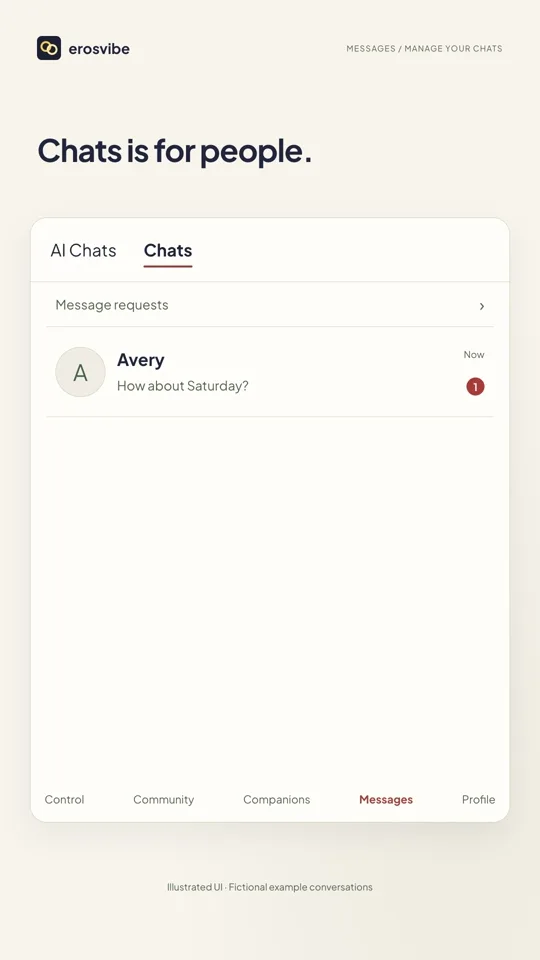
Know the two tabs
AI Chats holds characters and stories; Chats holds human conversations. Tap a conversation to continue.
- 02
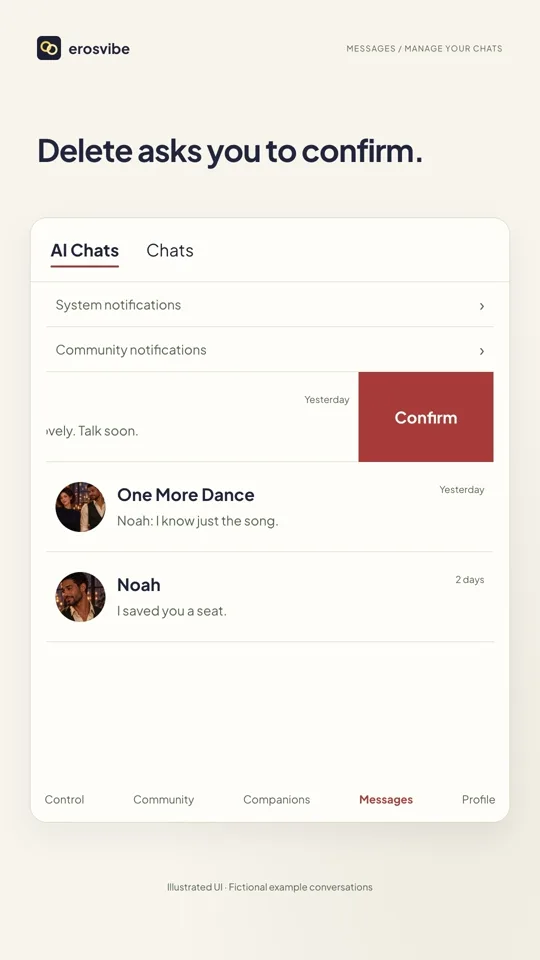
Swipe, then confirm
Swipe a character chat left in AI Chats. Tap Delete and that button changes to Confirm.
- 03
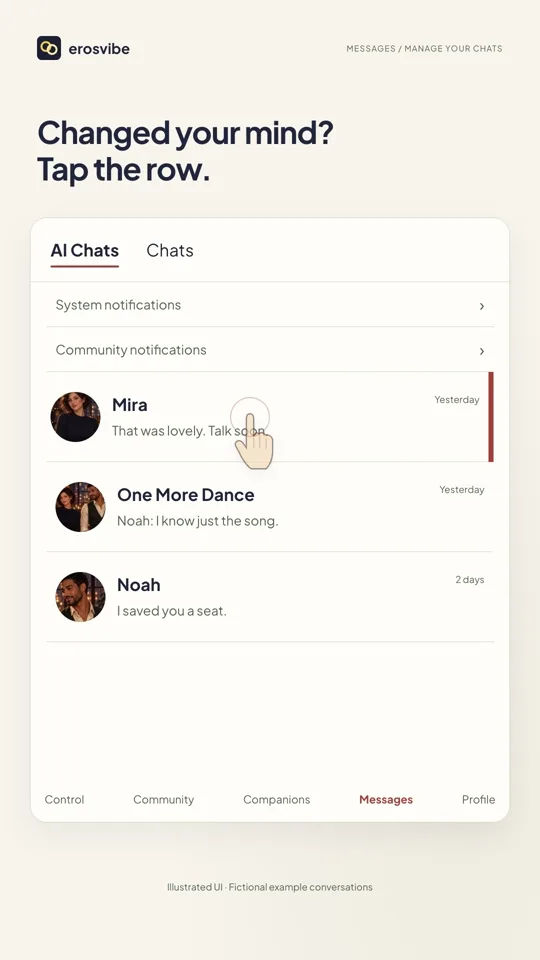
Cancel or confirm removal
Tap the conversation row to cancel. To remove it, swipe again and tap Delete, then Confirm.
- 04
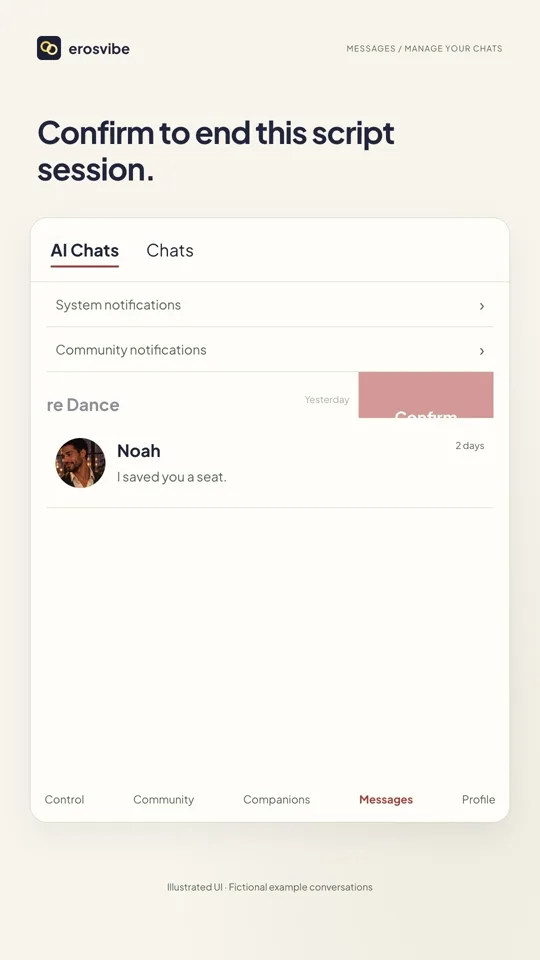
End a story session
Use Delete → Confirm on a story session. It leaves the list after the operation succeeds.
Keep in mind
Removing a character chat does not delete the character. A story action ends its session, not the story itself. Human chat deletion is not shown; recovery is not promised.
Read the related manual sectionYou might need next
 1:08
1:08Video + step-by-step guide
Discover characters and stories
Find a character or story, start chatting and return to the same conversation.
View guide 1:04
1:04Video + step-by-step guide
From a post to a conversation
Publish a post, visit a profile and connect through a message request.
View guide