
01 / Control
Control
Devices, modes & waveforms
Control
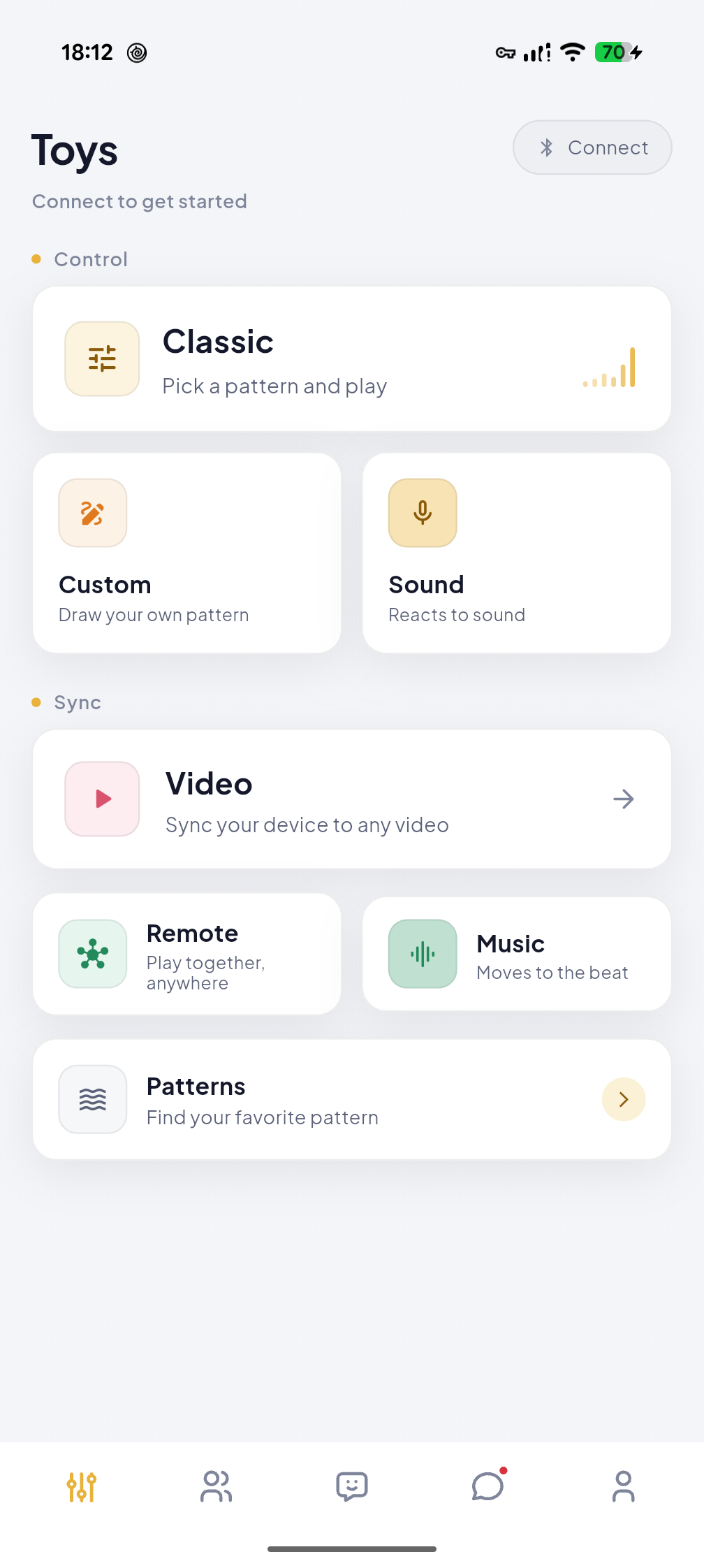
Connect a compatible device.
Charge and switch on the device, then put it in pairing mode following its manufacturer instructions. Keep it nearby and free from another active app connection.
- 01
Prepare
Turn on Bluetooth and follow the device maker’s pairing instructions.
- 02
Connect
Open Control and select Connect. Allow the requested Bluetooth permission.
- 03
Confirm
Select the compatible device in the system or app picker and wait for the connected state.
- 04
Try a mode
Begin at a comfortable low intensity. Keep the stop control within reach.
In a browser, device connection depends on Web Bluetooth support and the device protocol. If your browser or model is unsupported, use the mobile app. The remote controller may join without a local Bluetooth device; the device side still needs a compatible connection.
Control
Choose the rhythm that fits.
These are separate entries on the mobile app’s Control screen. Connect a compatible device, choose the task you want, and follow the steps below. Stop the current control before switching modes.
Classic mode
Choose a preset or a device function and stop it from the same screen.
Control → Classic mode
How to use it
- 01Connect first
Connect a compatible device from the Control screen. Sign in if prompted.
- 02Choose a pattern
Open Classic mode. Select a function and pattern, or tap one of the preset cards shown for your device.
- 03Stop
Tap the active preset again or use Stop before leaving or choosing another mode.
The available functions and patterns depend on the connected device.
DIY creation
Control supported functions by touch and save a recorded waveform.
Control → DIY creation
How to use it
- 01Open the canvas
Connect a device, then tap DIY creation on the Control screen.
- 02Control and record
Select an available function, move its touch control, and tap Record if you want to keep the session. Pause or resume as needed.
- 03Save or discard
Tap Stop, then Save waveform and enter a name. When leaving with an unsaved recording, choose Save or Discard.
If the page says there are no controllable channels, check the connected device. Unsaved recordings are discarded when you leave.
Sound control
Use your microphone to drive selected device functions.
Control → Sound control
How to use it
- 01Connect and open
Connect a device, then open Sound control.
- 02Choose functions
Enable the device functions you want to respond to sound. Tap Start and allow microphone access when asked.
- 03Stop listening
Tap Stop when finished. The device stops automatically during silence.
This mode listens through the microphone. Music sync uses tracks played inside ErosVibe and is a separate mode.
Music sync
Play a built-in track or import an audio file and let its rhythm drive the device.
Control → Sync → Music sync → Audio linkage
How to use it
- 01Connect a device
Tap Music sync in the Sync area of Control. If asked, connect a compatible device first.
- 02Choose your music
Tap a track in the playlist, or tap + at the top right to import one audio file from your phone. The app supports MP3, WAV, M4A, AAC, FLAC, OGG and WMA.
- 03Choose functions and play
In the panel above the player, keep at least one device function enabled. Use Play, Pause, Previous, Next or the progress slider at the bottom.
- 04Finish
Pause playback or leave the page. Leaving stops this page’s device output.
The playlist contains three built-in example tracks plus files you import. Music playing in another app is not imported automatically.
Video sync
Use a video from your phone or open a video webpage in the in-app browser.
Control → Sync → Video sync → Video linkage
How to use it
- 01Choose a source
Connect a device and open Video sync. Select Local video to choose a video from your gallery, or Paste an online video address to open the in-app browser.
- 02Local video
The selected video starts playing. Tap the video to show controls. In the linkage panel, choose Auto/AI or Manual control; Manual lets you drag the function controls.
- 03Video webpage
Enter a valid webpage URL in the in-app browser and start its video. Tap Linked control in the browser bar or floating button to open the control panel. Choose Auto/AI or Manual control.
- 04Finish
Pause the video, close the video/browser, or stop the control. To follow another app, use the separate Screen sync switch and grant the system screen sharing permission.
A video website may restrict embedded playback or frame analysis. If it does not work, try a local video. Screen sync requires explicit system permission.
Remote control
One person connects a device; another joins with a four-character code.
Control → Sync → Remote connection
How to use it
- 01Device side
Connect the compatible device, open Remote connection, then tap Generate code. Share the four-character code with the person you choose.
- 02Controller side
On a different account, open Remote connection, enter the code under Enter connection code and tap Connect. A local Bluetooth device is not required on this side.
- 03Control and end
Once connected, use Classic or Custom controls. The device side can cancel the code or disconnect the session at any time.
Share the code only with someone you trust. Everyone must agree to the session and may end it at any time.
Waveform library
Find a waveform, check compatibility and play it on a connected device.
Control → Waveform library
How to use it
- 01Browse
Open Waveform library. Use Latest, Popular, Saved or Mine, or search for a waveform.
- 02Check the device
Connect a compatible device. The Current device only filter can narrow the list.
- 03Play and stop
Tap a waveform card’s Play button. Use the playback panel to Pause, Resume, Stop or Loop.
A waveform needs playback data and a matching device model to control the device.
Kegel training · supported devices
Follow guided contraction and relaxation sessions when your device supports pressure feedback.
Control → Kegel training
How to use it
- 01Check the entry
Connect a supported Kegel device. The Kegel training card appears on Control only for a matching device.
- 02Choose difficulty
Open Kegel training and select a difficulty card to begin its guided workout.
- 03Pause or finish
Use Pause/Resume during the workout or End session when finished. View the summary and History from the training home.
If the pressure sensor is unavailable, the app provides timing guidance only and does not save a workout record.
Remote play requires clear, ongoing and revocable consent from every participant. The person with the device can end the interaction. Stop immediately if anyone withdraws consent or feels discomfort.
Control
Find a saved DIY creation.
DIY recordings are saved as waveforms. In the current app the destination is Waveform library → Mine, rather than a model list.
Record, save and return
- 01Create
Open Control → DIY with a compatible connected device, start recording and make a pattern.
- 02Save
Use the save action, enter a title and wait for save to finish. When leaving with an unsaved recording, choose Save and exit if you want to keep it.
- 03Find it
Go back to Control → Waveform library → Mine. This tab contains your created templates and recordings; Saved is for waveforms you bookmarked.
- 04Play or share
Open the waveform to play it on a compatible connected device. Publishing to the community is a separate action from saving.
If Mine looks empty, check the signed-in account, search or current-device filter, and whether the save action completed. Discarding an unsaved session cannot be undone.
02 / Community
Community
Feed, posts & people
Community
Post and talk to people.
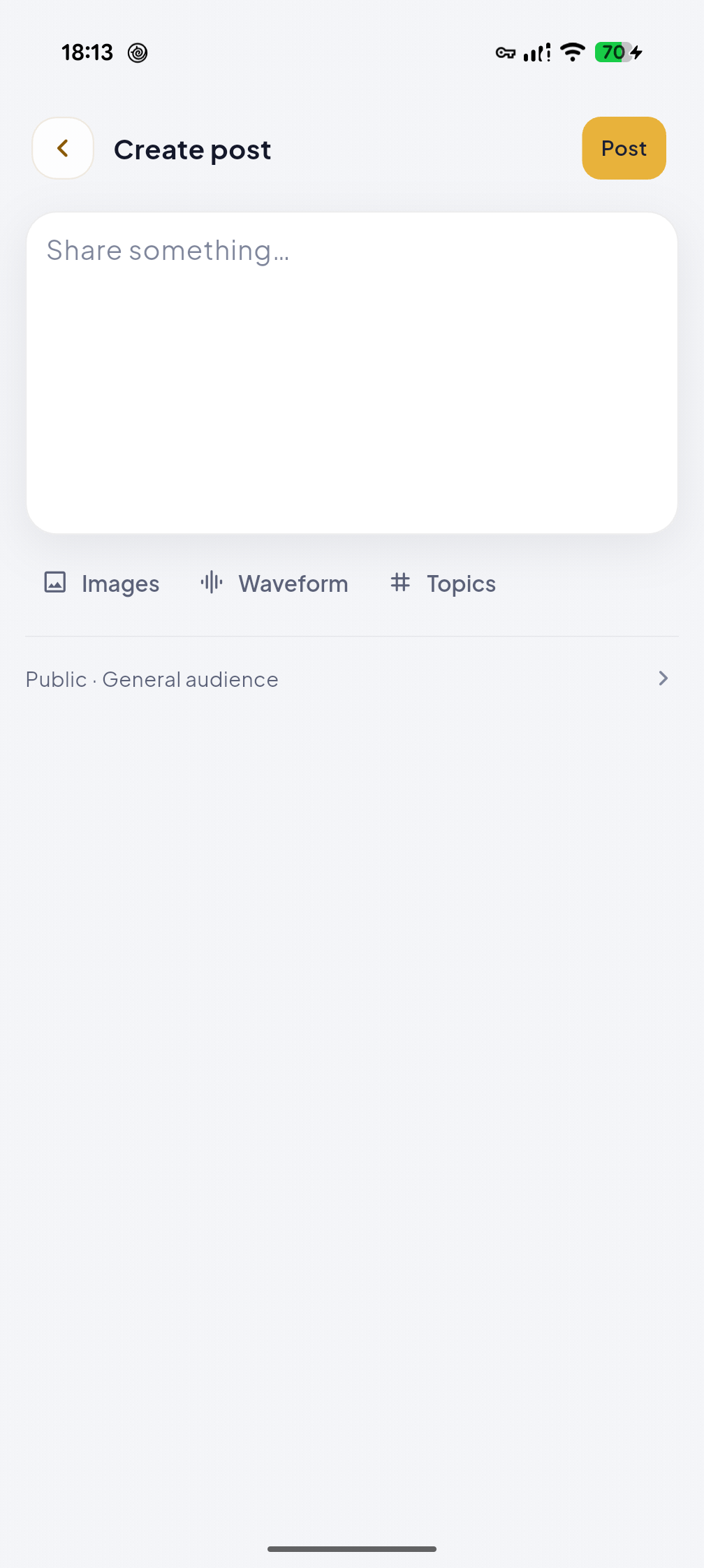
Community is the real-member feed. Use For you/Following to browse, the + button to post, and a member profile to start a direct message.
Publish a post
- 01Open the editor
Select the + button at the lower right of Community and sign in when prompted.
- 02Add content
Write the post. You may attach images, topics or a waveform; the editor allows up to nine images and three topics. Wait for image uploads to finish.
- 03Set visibility
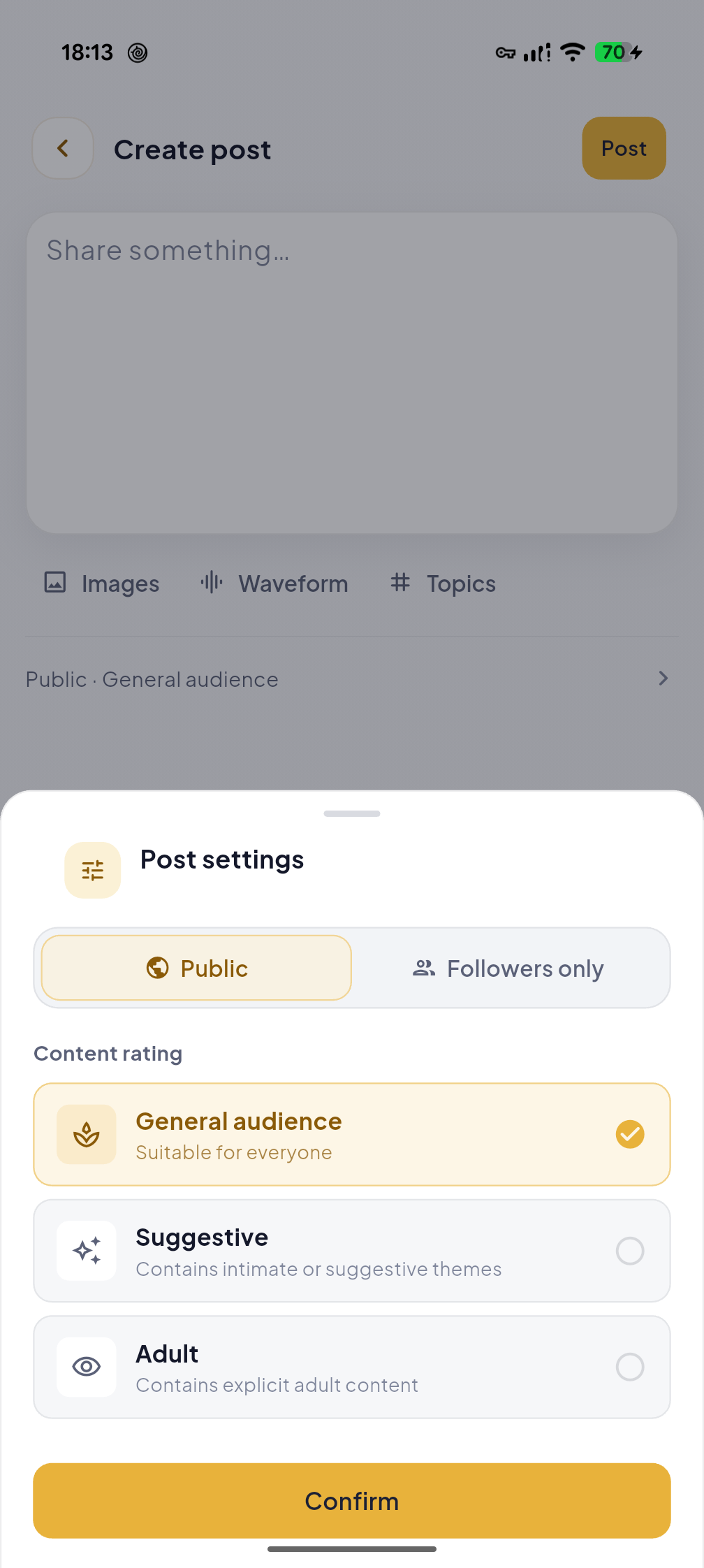
Open Post settings and choose Public or Followers only, then select the content rating. A private community account cannot publish a public post.
- 04Submit and find it
Select Post. A new post may enter review before appearing. Check Me → Posts or the submission notice for its status.
Message another member
- 01Open their profile
Tap the author name or avatar on a community post, then choose Message when that action is available.
- 02Handle the request
When a request is required, send one plain-text greeting and wait for acceptance before chatting normally. Their privacy settings or a block may prevent contact.
- 03Continue the chat
Find established chats under Chats. Message requests has Received and Sent lists: accept or delete a received request; withdraw one you sent.
More community actions
- 01Posts
Use the icons below a post to like, comment, save or share. Your own posts appear under Me → Posts; posts you liked or saved have separate tabs there.
- 02Manage or report
Open the more menu on your own post to edit or delete it. Use Report on a post, comment or profile that needs review. An edit can remain under review while the earlier version stays visible.
A post is community content; Chats is a private conversation with a real member. Share a post to a direct message only after that conversation exists.
03 / Companions / Explore
Companions / Explore
Browse stories & characters
Companions / Explore
Start with a story.
No device is needed to browse AI characters or interactive stories. Open ErosVibe on the web or in the app, then explore the discovery area.
- 01Open discovery
Choose Stories or Characters at the top of the discovery screen.
- 02Find something interesting
Browse cards, use search or filters, and open a character or story.
- 03Follow the prompt
Sign in if asked. Review any membership or credits notice before continuing.
04 / Messages
Messages
AI chats & real people
Messages
Know which conversation you are opening.
The message hub has two tabs. AI Chats holds AI character and story conversations, plus notification entries. Chats holds conversations with real community members and the message-request entry.
- 01AI Chats
Open an AI character or story thread to continue that interaction. This is not a private chat with a person.
- 02Chats
Open a conversation with a real member. New messages from someone you do not follow may first appear in Message requests.
- 03If a chat is missing
Check the other tab and your request list. Sign in to sync your account conversations.
05 / Me
Me
Create, manage & set privacy
Me
Create a character or script.
Open Me → Create with AI, then choose Character or Script. A device is not required.
Create a character
- 01Start
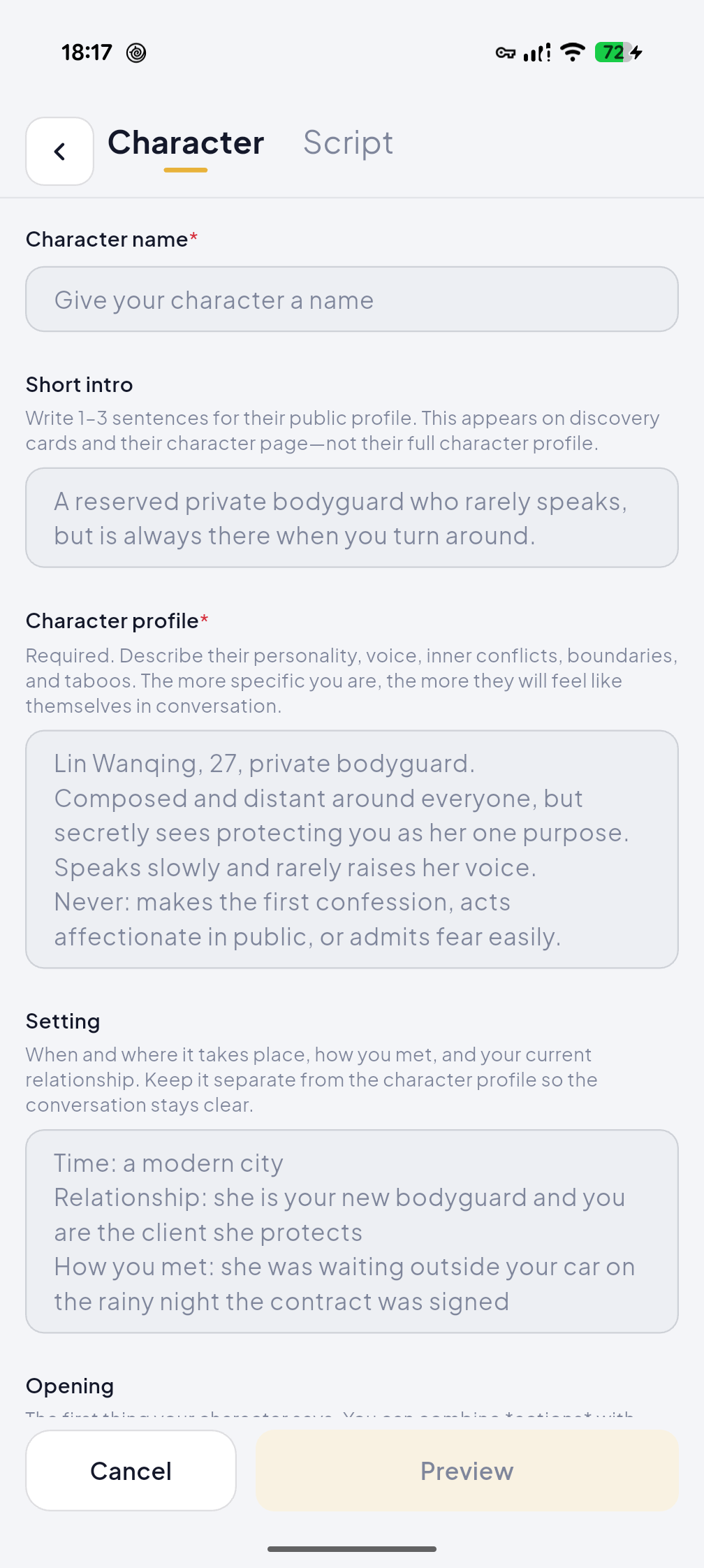
In Me, select Create with AI → Character.
- 02Describe the character
Enter a name and character profile. Add a short public bio, setting, opening line, tags and voice as needed. The name, profile and minimum tags are checked before preview.
- 03Preview and confirm
Select Preview, upload or generate a cover, check the content rating, then confirm. Follow any review or credits notice shown by the app.
- 04Find your work
After submitting, return to Me → Characters to find and manage the character. Leaving the editor before submission does not keep this unfinished form.
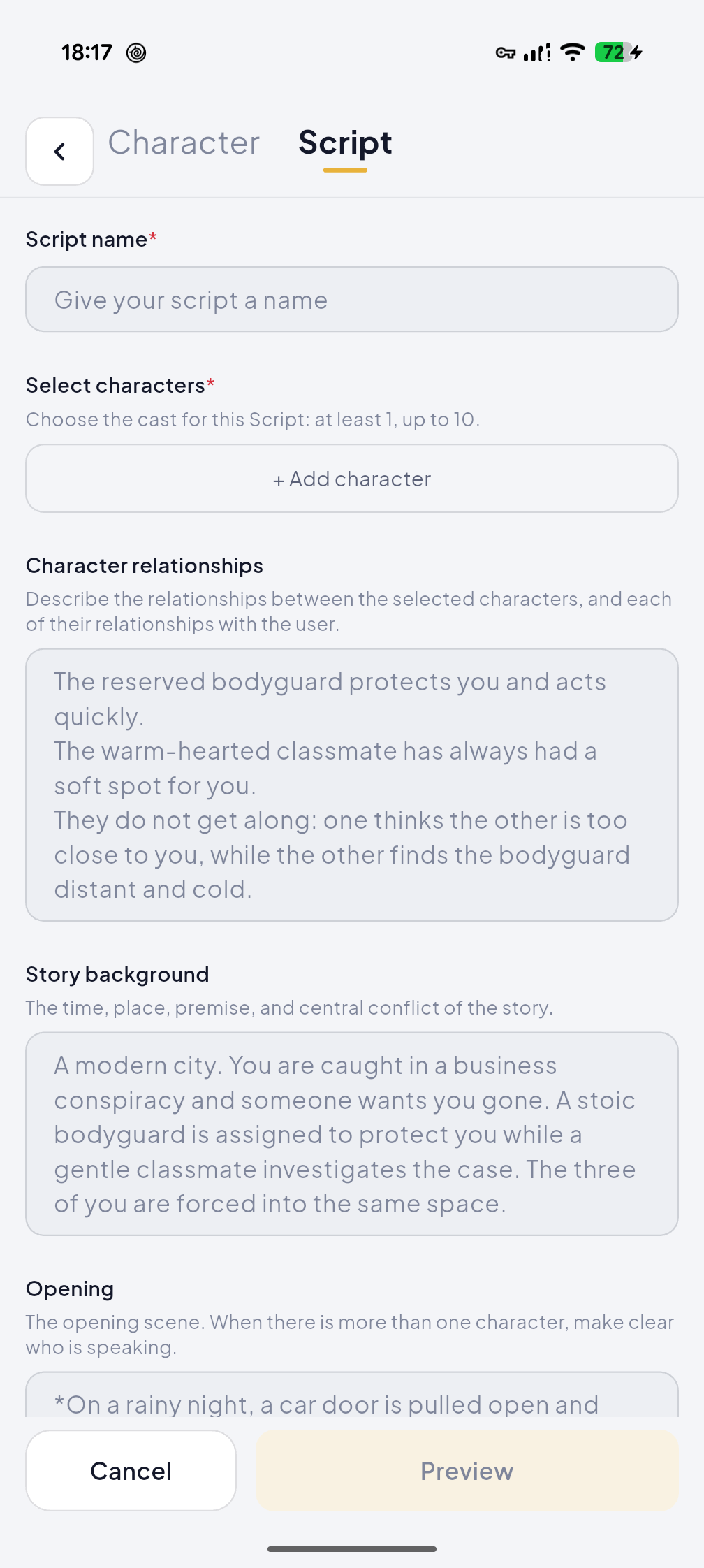
Create a script
- 01Start
In Me, select Create with AI → Script. Give the script a name.
- 02Choose the cast
Add characters and explain their relationships. Add the story background and opening scene; choose a content rating and tags. A script needs at least one character when the user is included, or two when the user is not included.
- 03Preview and confirm
Select Preview, add a cover, review the cast and text, then confirm. If a review or billing prompt appears, use the details shown there.
- 04Manage it
Find the result in Me → Scripts. For a main script you created, episode management can add further episodes.
If submission status is unclear, check Me → Scripts before trying again; a second submission may create a duplicate.
Me
Choose who can see and contact you.
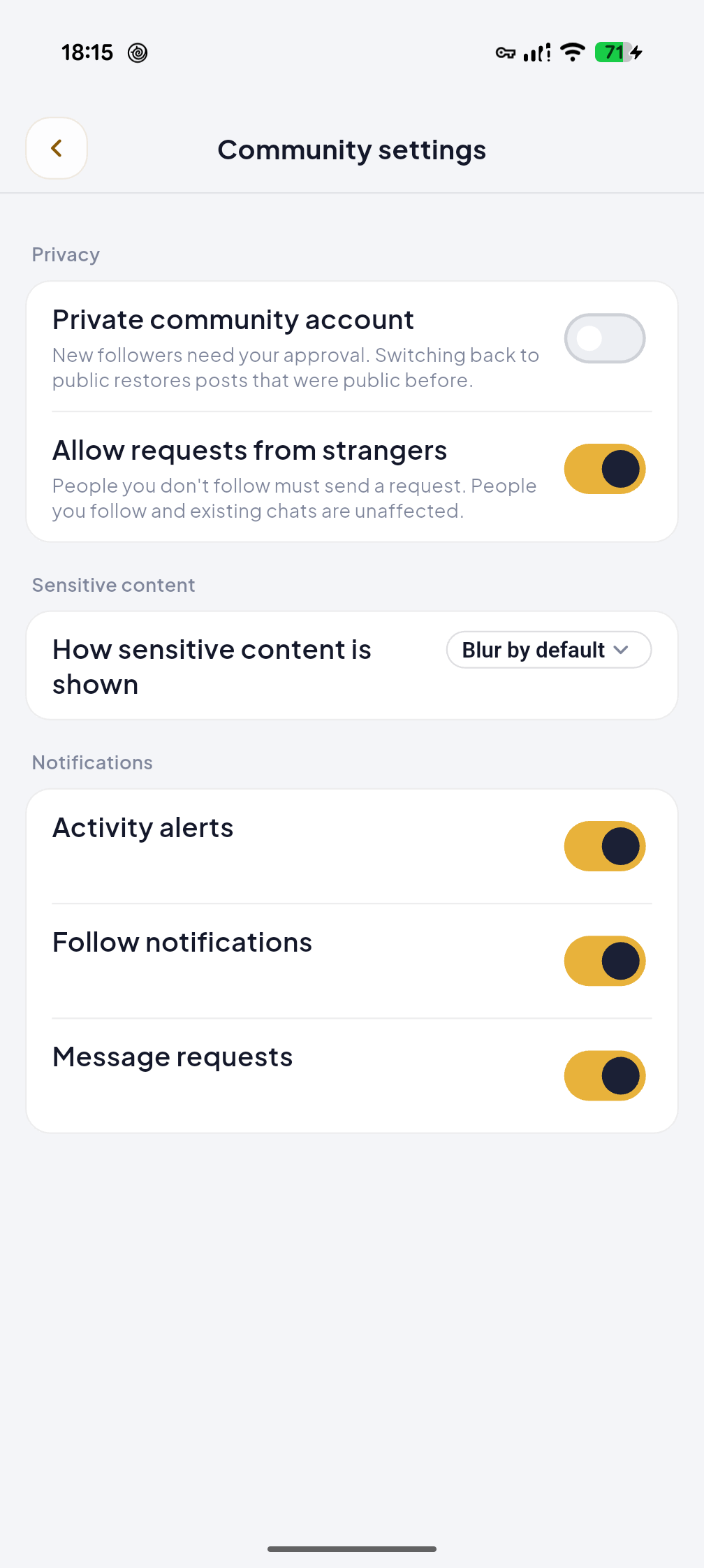
Open Me → the settings gear → Community settings. These controls affect different things; use the one that matches your goal.
Community privacy
- 01Private community account
Turn this on when new followers should need your approval. Previously public posts are not shown publicly while the account is private; switching back restores their original visibility. This is not a switch that removes your account from every surface.
- 02Allow message requests
Turn this off to stop new requests from people you do not follow. People you follow and existing conversations are unaffected.
- 03For one person
Use Block on their profile; you can review blocked users in Me → Settings → Blocked users. Follow requests are in the same Settings area.
Post and display controls
- 01Post visibility
Choose Public or Followers only in each post’s Post settings. This is separate from account privacy.
- 02Sensitive content
Choose Show, Blur by default or Hide in Community settings when this control is available for your account and region.
- 03Notifications
Interaction, follow and message-request alerts have separate switches. Turning off an alert does not turn off the underlying interaction.
- 04Your work
Me has Characters, Scripts and Posts tabs. Use a character or script card’s management menu to edit, publish, make private or delete it when that action is available.
For “do not let strangers message me,” turn off message requests. For “stop this particular person,” use Block. Already established chats are not removed by the request switch.
Contact support
If something does not work.
These checks solve the most common setup problems.
Device not found
Check battery, pairing mode, distance, Bluetooth permission and whether another app is connected.
Connected, but no response
Check the selected mode, device support and intensity. Stop the mode, then reconnect if needed.
Music plays, but the device does not move
Check that the device is still connected and at least one function switch is enabled in Audio linkage. Pause, then play the track again.
A video webpage does not link
Try a local video. Some websites block in-app playback or do not expose usable frames for analysis.
Feature or content unavailable
Availability can depend on platform, region, account, membership, credits or device model. Check the notice shown in the app.
Contact support
Include the device model, phone or browser version, and the step where you got stuck. Never send a password or pairing credential.
Contact support