
Community / WALKTHROUGH
From a post to a conversation
Publish a post, visit a profile and connect through a message request.
BEFORE YOU START
Sign in. Posting and messaging depend on community rules and the recipient’s contact settings.
Follow along, step by step.
Choose a timestamp to jump in. Select an image to enlarge it.
- 01
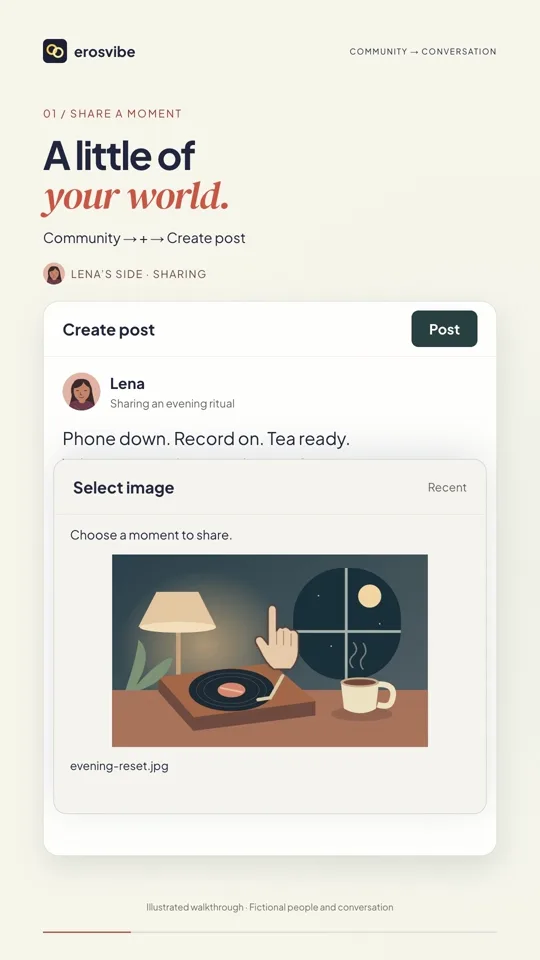
Create your post
Tap + in Community, write your post, add an image and check visibility and rating before tapping Post.
- 02
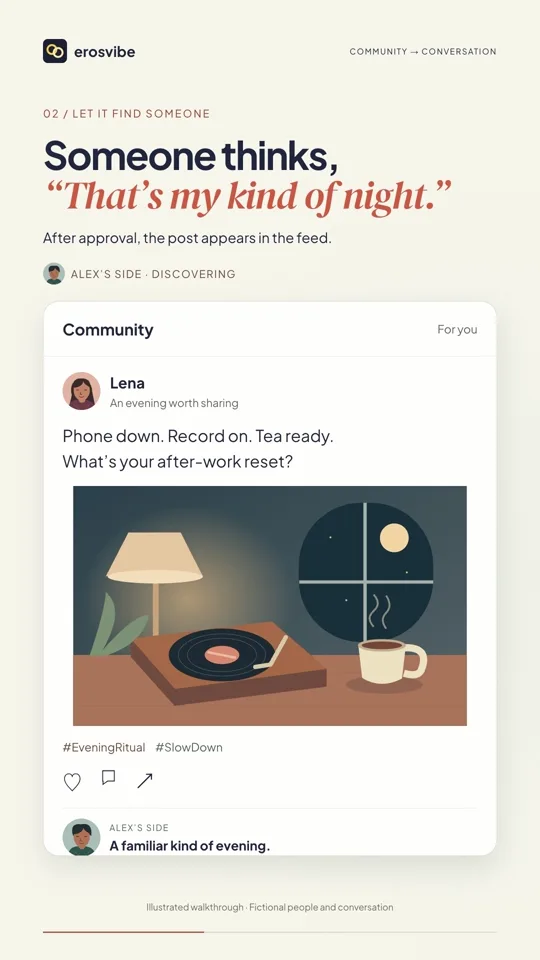
Review and profile
If review is required, wait for approval. Tap a post’s author to visit their profile.
- 03
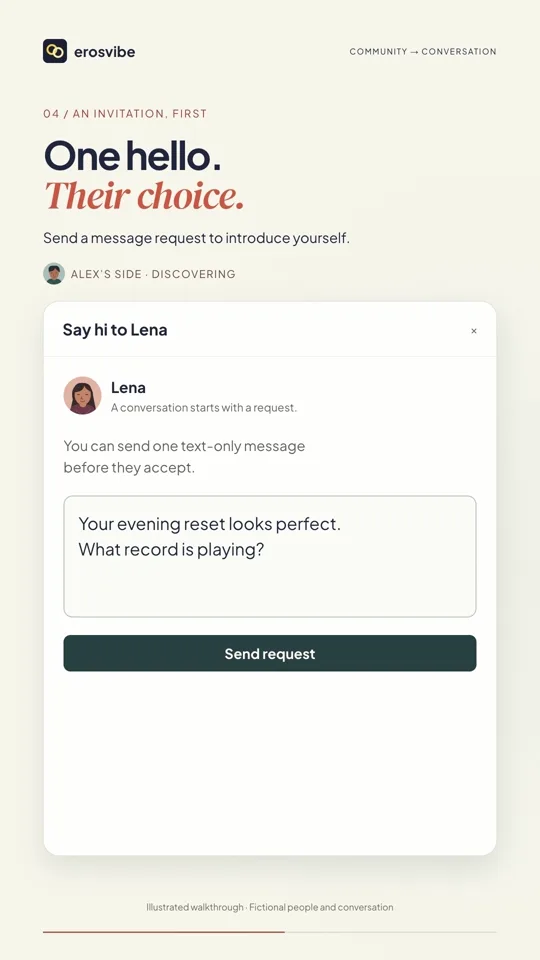
Send a message request
Tap Message on their profile. If a request is required, send an introduction and wait.
- 04
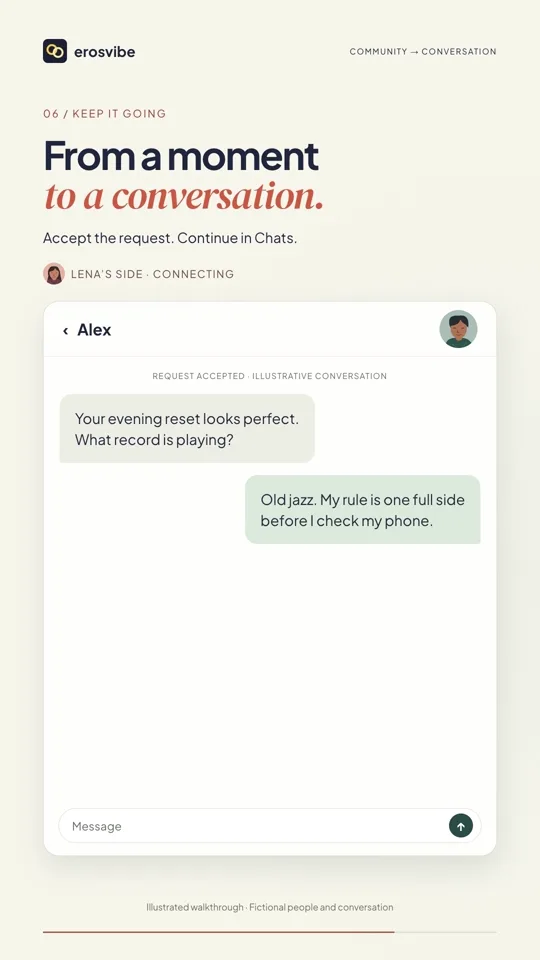
Accept and keep talking
The recipient opens Messages → Chats → Message requests and accepts. Both people can then continue chatting.
Keep in mind
People and conversations are fictional examples. Posts may need review. When a request is required, only one text introduction can be sent before acceptance.
Read the related manual sectionYou might need next
 1:14
1:14Video + step-by-step guide
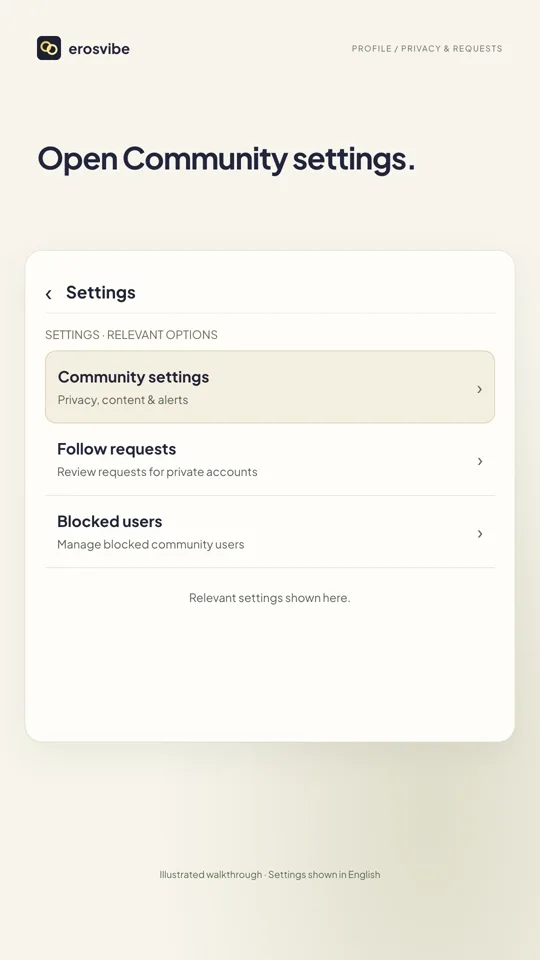
Set privacy and message permissions
Control community privacy, stranger requests and alerts, then handle requests.
View guide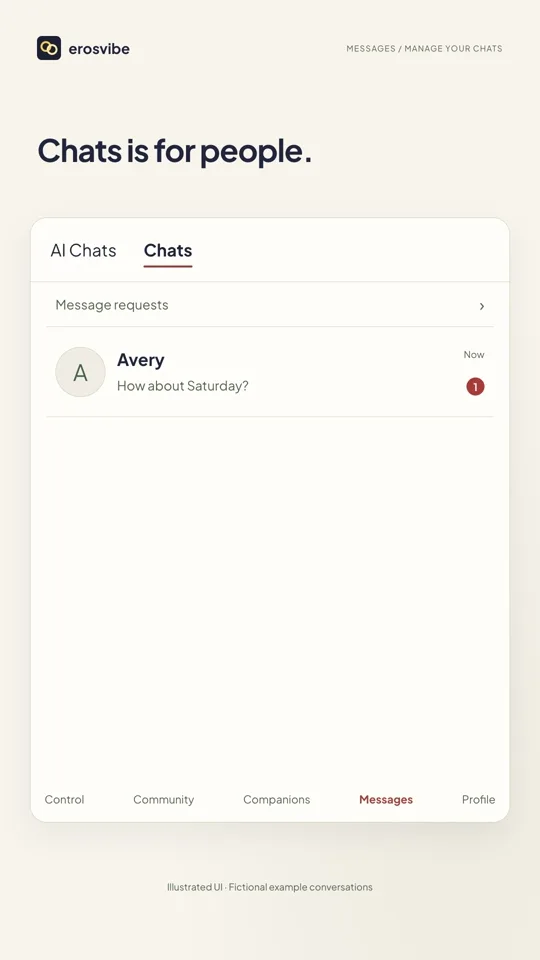 0:56
0:56Video + step-by-step guide
Find and manage your chats
Separate AI and human chats, and learn to cancel or confirm chat removal.
View guide